Changes in V1.30
 |
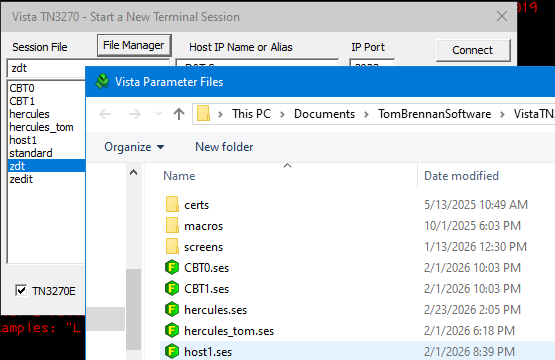
C1018 Added INI option to tells Vista to show a "File Manager" button on the connection window |
Use ShowFileManagerButton=1 which opens a standard file manager window where you can select, delete, or rename session files.
|
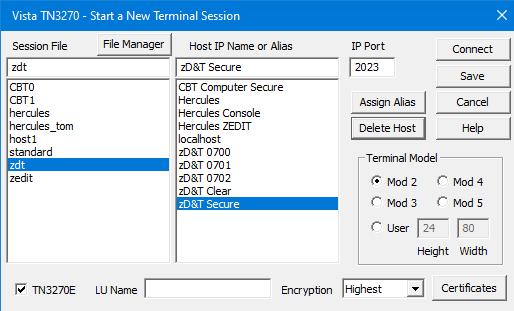
C1017 Added INI option to hide the SES extension in the File/ReconnectAsk session file selection window |
Use HideSesExtension=1 in vista.ini to show session file names with no extension, such as:
|
C1016 Add Screen/Keyboard-Modifications/PC-Codepage to SetOption and GetOption logic |
This was requested so a user could use a macro to change the code page back and forth between applications.
|
P1015 In the Misc Options, the Keyboard Modifications setting cannot be changed to a blank |
Fixed.
|
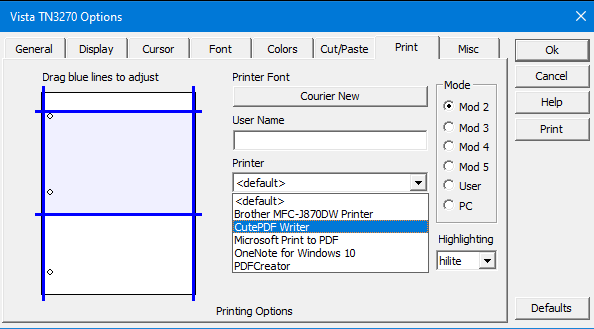
P1014 In the Print Options, the default printer setting doesn't change untio Vista is restarted |
This was pretty confusing - fixed.
|
C1013 Implemented an option to use Regina Rexx for Vista macro processing |
To start using Regina as a macro processor, you'll need to add a /* Rexx */ comment at the top of the *.mac file. Then of course the code will need to be Rexx instead of the Vista macro language. For example, instead of Debug("Hello") you'll want to use say "Hello".
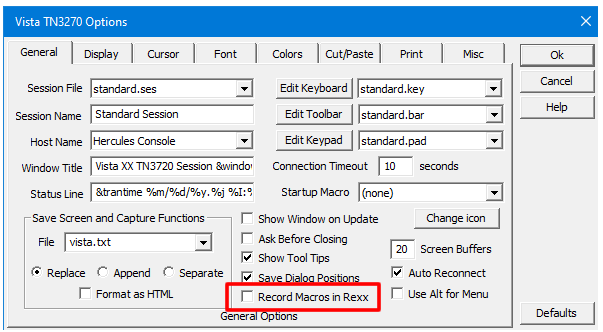
And if you want to record a macro in Rexx, set the option on the General Options window, such as:
The macros statements that interact with the terminal to type text, press keys, and gather text, should all be the same in Rexx as in Vista, or at least about the same. To make things a bit simpler I also added the WaitUnlocked() statement which makes it easier to code than the older Wait() statement. You'll see that in the Rexx keystroke recordings.
I added a Rexx section to the Vista Help documentation, but note that it does not detail Rexx itself - look for the Regina Rexx manual for that. But there is documentation showing the relationship between existing Vista statements and the equivalent in Rexx, such as this example:
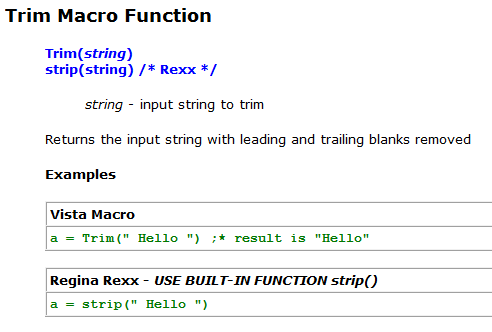
So please read over the help doc and see if Rexx works better for you than the Macro language I designed back in 1997, which can be pretty confusing sometimes.
|
P1012 On the file transfer window, when CMS is enabled the RECFM and LRECL options do nothing |
Fixed
|
C1011 Display the Window Title on the Window menu pulldown |
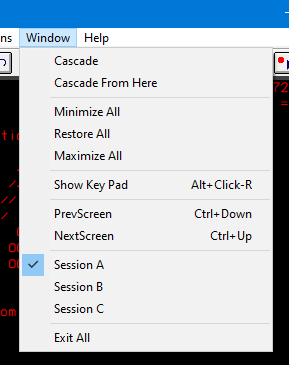
By default Vista shows the session id letter on the Window menu pulldown, such as this image:
But let's say you open each window with a separate *.ses file that has different Window Titles, and you'd like to select from those titles, not by session id letter:
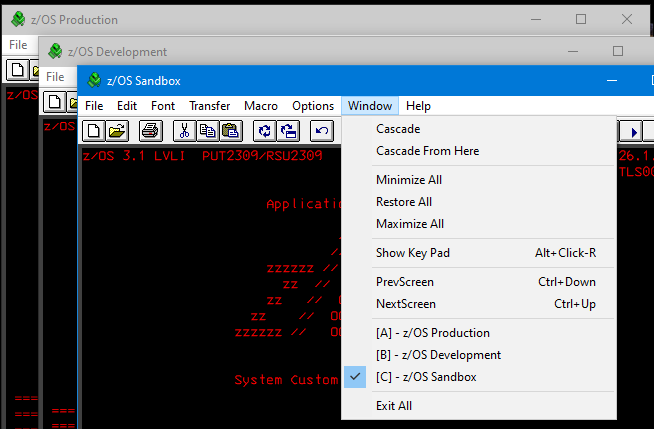
Now there's less chance of selecting the wrong window and, for example, do something on the prod system that you really meant to do on the sandbox. Yep... we've all done that.
To enable this, find vista.ini and add the option ShowMenuWindowTitle=1 and restart all Vista windows.
|
P1010 Rewrote HTML screen save logic |
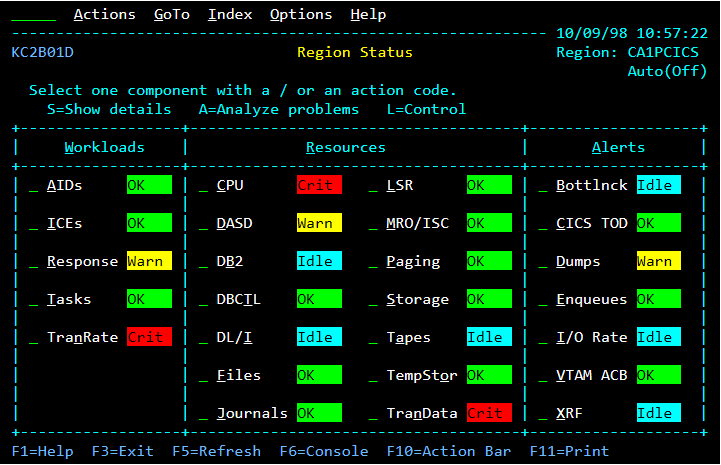
A V1.29 user mentioned that the Save Screen logic that produces an html version of the current Vista screen was failing to display underscores correctly. After running a lot of tests, I found out other things didn't work correctly either. I ended up rewriting that code using a copy of the same logic used to display the screen to the user. That way, both screen and html versions should look exactly the same. Here's a test display from an old Omegamon program, showing underscores, reverse video, and colors matching the Vista display:
Original Screen
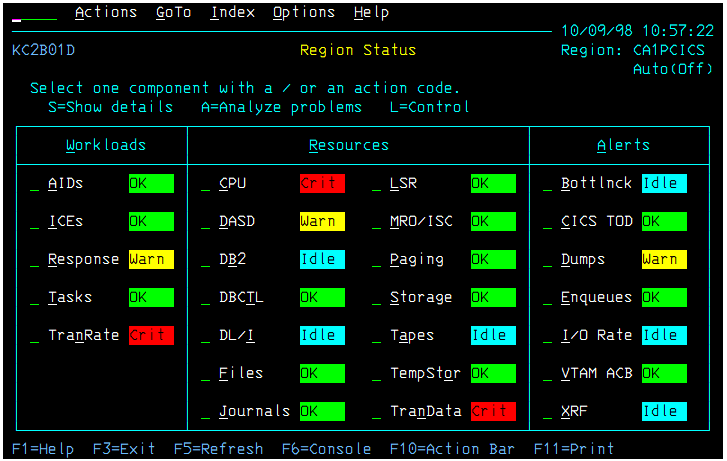
HTML result (viewed using Chrome)
|
C1009 Don't Ask Before Closing if there is no host connection |
Some people set the Ask Before Closing option on the General Options window, which results in a message like this when you close a Vista window:
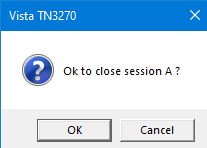
A user asked if I could change that logic so the message window only appears if a host is connected. So this change should do that.
|
C1008 Add /a command line option to use %appdata% for parameter files |
I've been getting a few reports of files such as standard.ses apparently disappearing, which then prevents Vista from starting up. In every case, the user has shown me that the Documents folder has been rerouted to OneDrive.
That in itself shouldn't cause any issues, but my assumption (with no additional data yet) has been that these are company computers, and they are seeing Vista create and update files in the OneDrive directory that perhaps are not allowed, or are deemed as malware, and then deleted.
The workaround has been to ask the user to look up "directories" in the Help doc and see if they can use files.ini to redirect these parameter files to a location on their local disk, hopefully out of reach of whatever might be deleting the files, for example, c:\VistaTN3270. But that's difficult and requires admin authority if the user took the default product installation directory of c:\Program Files (x86)\TomBrennanSoftware, protected by Windows.
So as another workaround, I added the /a command line option. A user with this issue can hopefully edit their shortcuts, to add the /a option something like this:
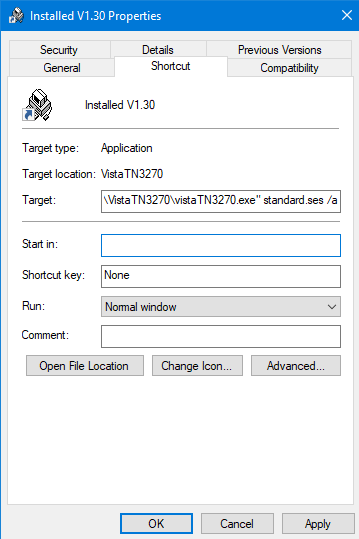
With that /a command line option, Vista will use %appdata%\TomBrennanSoftware\VistaTN3270 as the parameter file directory, again, hopefully out of sight of whatever might be messing with OneDrive files.
When you first need the /a option in such a situation, where files are deleted, Vista will copy the default files to the new %appdata% directory. That means things will be set back to the factory defaults, but at least that should get you working again.
If you decide to use %appdata%, you might want to make a shortcut to where the files are located, one way to do that is to type in the path %appdata%\TomBrennanSoftware\VistaTN3270 in a file manager window, like this:
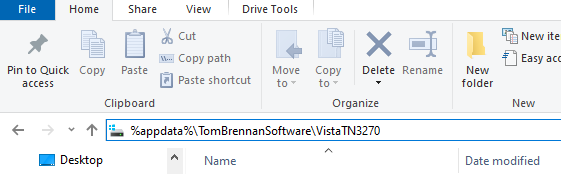
That should transform to the actual directory showing the files, such as:
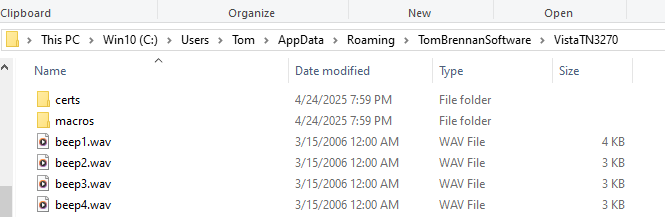
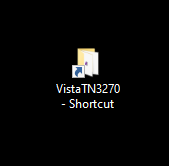
Then you can drag the top folder image (to the left of This PC) to your desktop while holding ctrl and shift to create a desktop shortcut.
Some Background Notes
Originally, I wanted to keep all files needed to run Vista in the same directory, including both read-only executables, and read-write parameter files. Around the time of Windows 7, Microsoft disallowed this because they feel that's what malware does, write to it's own install directory. The Microsoft standard for such files was deemed to be %appdata%, which is relatively hidden from the user, unless you make a shortcut as described above.
I soon found out that many businesses and users at the time did not back up %appdata% (which is a short form for c:\users\userid\appdata\roaming), but they did back up Documents regularly (which is a short form for c:\users\userid\documents unless redirected). So I chose Documents for those 2 reasons - visibility, and regular backups.
It might be time to head to %appdata% and see if that works out better for the folks using OneDrive or other redirections of the Documents folder.
|
P1007 Border text doesn't go far enough to the right on wide screens, colors, and related problems |
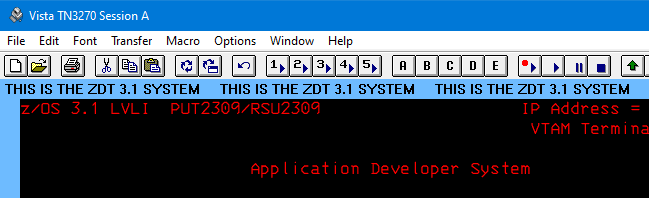
Border text is set on the Font options window, and is likely a relatively unused function. But while working on P1006 I noticed that on my wide test screen the border text did not replicate all the way across the screen. So I increased the width somewhat. There were also other issues. Here's a typical example if you haven't used this:
|
P1006 Font size calculated is too tall when using True Type font and a terminal border area larger than 12 |
This was an odd error I came across when testing the addition of border text on the Font options window. The logic to calculate the font size was not taking into consideration the border size, producing odd overlays at the bottom of the terminal window, such as this:
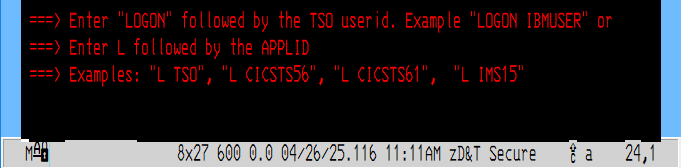
Note that this only happened when the border size was larger than 12, and when using True Type fonts.
|
P1005 INI option BigNumberFormat=1 doesn't produce a number |
A user reported that setting the INI option for BigNumberFormat=1 returned some odd text. It certainly did in my test, and I fixed that with this update, so it returns a full number with comma separators, like 123,456,789 which is typically only needed for the file transfer byte count.
Here's a sample of the bad number display in the transfer log, followed by the fixed number:
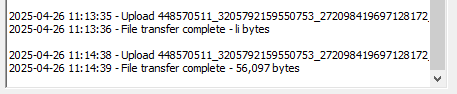
Note that this only happened when BigNumberFormat=1 was specified in the vista.ini file.
|
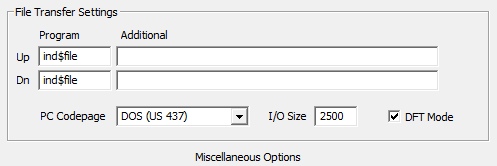
P1004 Change max file transfer I/O size back to 2500 |
The File Transfer I/O Size (on the Misc Option panel) can be set up to 32000, which can really speed up IND$FILE transfers. So for some previous versions I set the default to 25000 instead of the original 2500. But then some people started having issues, apparently their systems could not handle the larger size. Instead of investigating, I'll just set it back to 2500.
But remember, you can set this value yourself and perhaps dramatically speed up your file transfers.
|
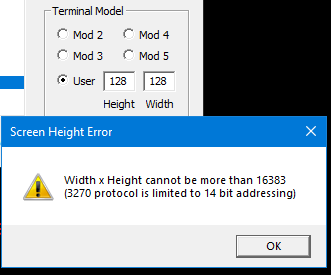
P1003 Allow 200 x 200 max, but only up to 16383 max buffer size, since 3270 protocol has 14 bit SBA's max |
There was an online conversation about maximum terminal sizes which reminded me that I should allow any size you want to specify (well, up to 200) but still be limited to a 14 bit address, max 16383 bytes. So I changed the logic in Vista to those new limits.
|
P1002 New icon bitmaps, since the old ones look pretty bad on Win 11 |
Windows 11 uses some newer methods for displaying the icons supplied with a program, and they really look terrible with older Vista versions. I'm surprised no user has mentioned this to me yet - maybe they are just being nice :)
Here's an embarrassingly bad view of the old icons on Win 11, that you can get by enlarging them a bit on the desktop or in a folder display:

And here are the new icons, enlarged similarly:
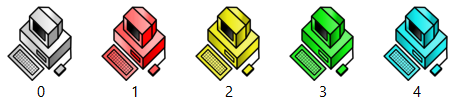
When I drew the new ones, I tried to keep the 1990's Win 3.1 look, but now they remain clear when they are enlarged. Also, the original 4 "Vista View" icons were created (at a user's request) by my 5 year old daughter, now redrawn by my 27 year old daughter (still in the original style) as:

FYI the original gray computer icon came from an icon set included with Visual Basic in the mid 1990's.
Windows Icon Cache Note
If you install this test version and notice that your icons are still the bad ones shown above, you may need to clear the icon cache in Windows. One way to do that is to create a *.bat file with these statements, and run it from a DOS window.
ie4uinit.exe -show
taskkill /IM explorer.exe /F
DEL /A /F /Q "%localappdata%\IconCache.db"
DEL /A /F /Q "%localappdata%\Microsoft\Windows\Explorer\iconcache*"
start explorer.exe
Note that this kills and restarts the desktop, so you may want to do that around the time you intend to reboot anyway, i.e., close any important work.
|
C1001 Set default KeepAliveTime back to 240 seconds (4 minutes) |
For a few recent releases, I've set the default KeepAliveTime to zero, because some users mentioned that a telnet NOP bytes caused trouble on their systems. But after changing it to zero I've had many more complaints, so I'm changing it back to 4 minutes.
This option, if zero, does nothing. If not zero, the value specified is used as the interval (in seconds) to send out a couple of bytes to the TN3270 server that basically do nothing. However, such network activity can sometimes prevent a router, server, switch, or whatever from timing out and disconnecting the terminal session.
If you are wondering what your current KeepAliveTime is, add the &keepalivetime variable to the Status Bar text in the General options, to display that number. And if you think this is causing connection issues, let me know please.
|